How to import Fujifilm recipes wirelessly over Bluetooth
Short answer: In the FujiStyle app on iPhone, open a recipe, tap Apply Recipe, choose Wireless, tap your camera in the list and pick a custom slot. The app writes the recipe’s settings into that slot over Bluetooth, with no cable and no computer. It works on 15 Fujifilm bodies today. On Android, recipes go to the camera over USB for now.
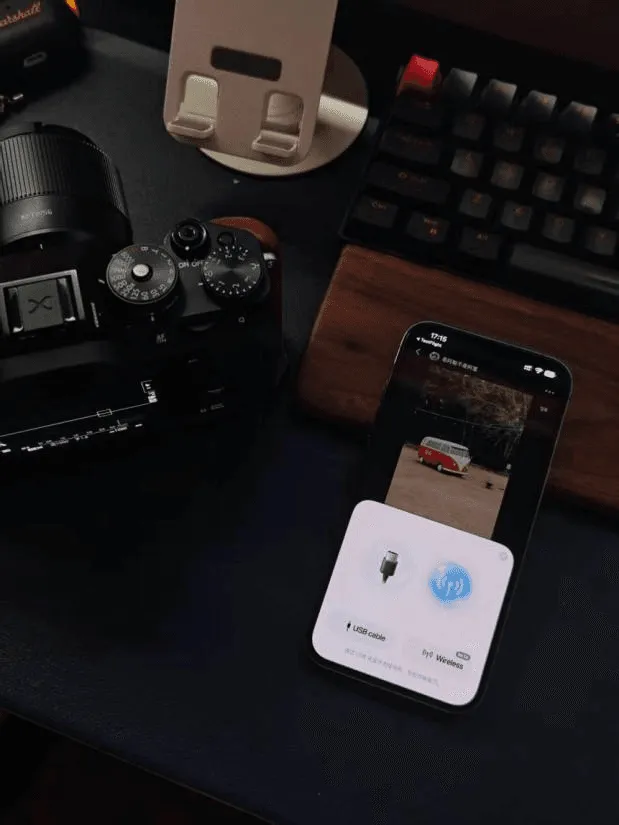
What you need
- An iPhone with FujiStyle (iOS 16 or later). Wireless import is free in the app right now; the App Store listing describes it as free for a limited time.
- A supported camera from the table below, switched on.
- A charged battery. The app can’t read the camera’s battery level, so start with a reasonable charge. We suggest 30% or more.
- Bluetooth on the phone, with Bluetooth access allowed for FujiStyle.
- Other camera apps closed, including FUJIFILM XApp, so they don’t hold the camera’s connection.
- The phone next to the camera, and a couple of minutes with the app open on screen.
Supported cameras
| Camera | Custom slots | Good to know |
|---|---|---|
| X100VI | C1–C7 | |
| X-T5 | C1–C7 | |
| X-T50 | C1–C7 | Has a film simulation dial |
| X-E5 | C1–C7 | |
| X-T30 III | C1–C7 | Has a film simulation dial |
| X-T30 II | C1–C7 | |
| X-T30 | C1–C7 | White balance shift is shared between slots |
| X-T3 | C1–C7 | White balance shift is shared between slots; slot name not written yet |
| X-H2 | C1–C7 | Slot name not written yet |
| X-H2S | C1–C7 | Slot name not written yet |
| GFX100RF | C1–C7 | Slot name not written yet |
| GFX100 II | C1–C6 | Slot name not written yet |
| X-S20 | C1–C4 | C positions on the mode dial |
| X-S10 | C1–C4 | C positions on the mode dial |
| X-M5 | C1–C4 | C positions on the mode dial; slot name not written yet |
- Slot counts vary by body: most have C1–C7, the GFX100 II has C1–C6, and the X-S20, X-S10 and X-M5 have C1–C4.
- “Slot name not written yet” means the app writes all the settings, but the slot keeps the name it already had. You can rename it in the camera’s custom settings menu.
- X-T3 and X-T30: these cameras store one white balance shift per white balance mode, not one per slot. Writing a recipe that uses Daylight with a shift changes the shift for every slot set to Daylight.
Cameras that can’t import wirelessly
- No Bluetooth
- X-Pro2, X100F, X-T2, X-T20. Use USB.
- Bluetooth, but no settings transfer over Bluetooth
- X-E3, X-H1, X-T100, X-T200, X-A5, X-A7, XF10, X-HF1. The X-E3 can import over USB. On the others, set the recipe by hand from its settings card.
- Not supported yet
- Other Bluetooth bodies, such as the X-T4, X100V, X-E4, X-Pro3, GFX 50R, GFX50S II, GFX100S and GFX100S II, connect but the app can’t read their settings over Bluetooth yet. Use USB for these.
Pair once
The first connection needs the camera’s pairing screen. After that the app remembers the camera.
- 1
Turn the camera on
Keep it on until the app has connected.
- 2
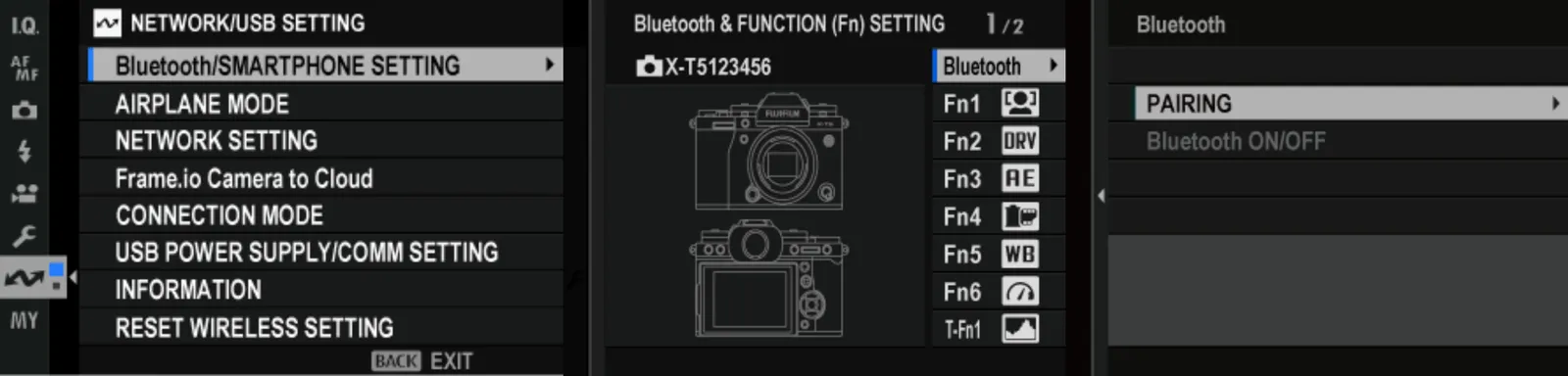
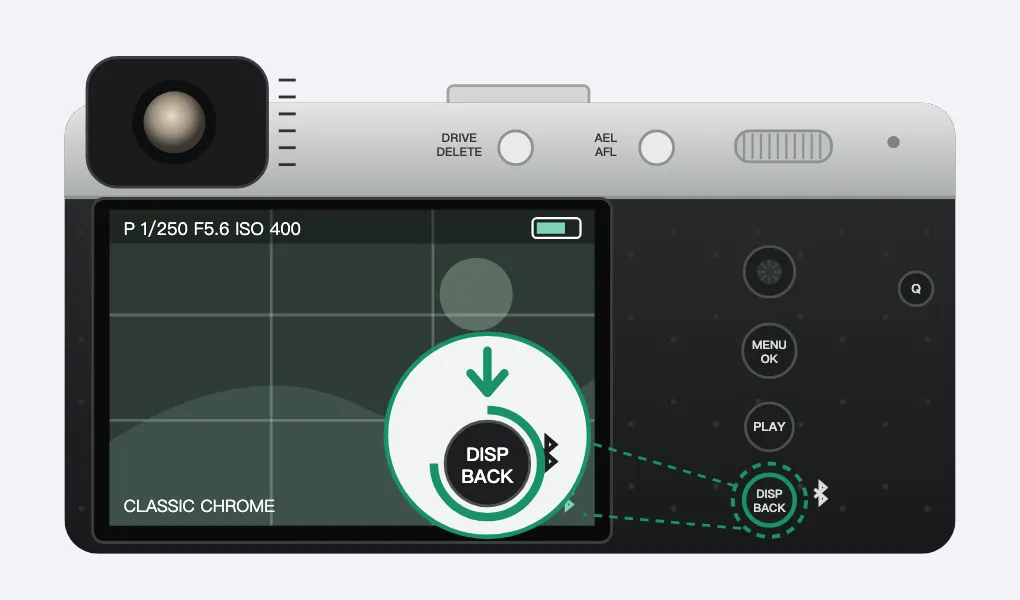
Open the camera’s pairing screen (PAIRING REGISTRATION)
On many recent bodies you can hold DISP/BACK for about two seconds on the shooting screen and choose PAIRING. From the menu it is SET UP (wrench) › NETWORK/USB SETTING › Bluetooth/SMARTPHONE SETTING › PAIRING REGISTRATION on newer bodies, and SET UP › CONNECTION SETTING › Bluetooth settings › PAIRING REGISTRATION on older ones. Names vary a little by model, so check your manual if you can’t find it.
- 3
In FujiStyle, open any recipe, tap Apply Recipe, then Wireless
Your camera appears in the list. Tap it.
- 4
Confirm on both sides
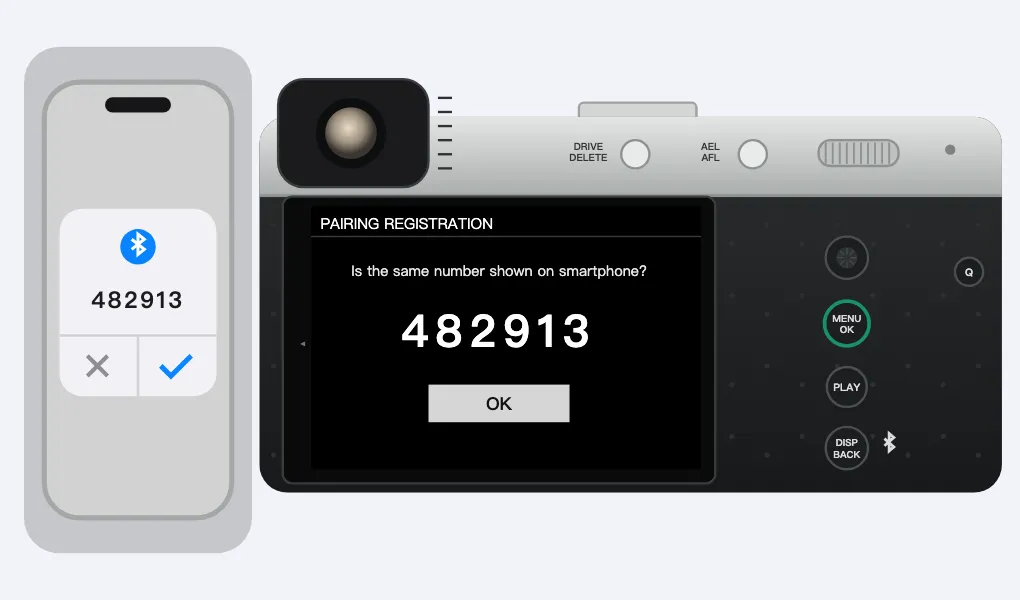
Newer bodies (X-E5, X-T5, X100VI and similar): the iPhone shows a Bluetooth pairing request. Tap Pair right away, and if the camera shows a number, press MENU/OK on the camera too. Do both within about 30 seconds. Older bodies (X-T3, X-T30, X-T30 II, X-S10): no iPhone prompt appears. Keep the camera on the pairing screen until the app connects.
Next time, turn the camera on and open Wireless. The camera shows up in the list as Last connected or Paired. Tap it to connect; the app doesn’t connect on its own.
You’ll need to pair again if the camera has since been paired again (with another phone or app), if its pairing was deleted or its wireless settings reset, or if you reinstalled FujiStyle or moved to a new phone. The app tells you which one it is; the fixes are in the troubleshooting section below.
Import a recipe on iPhone
- 1
Pick a recipe
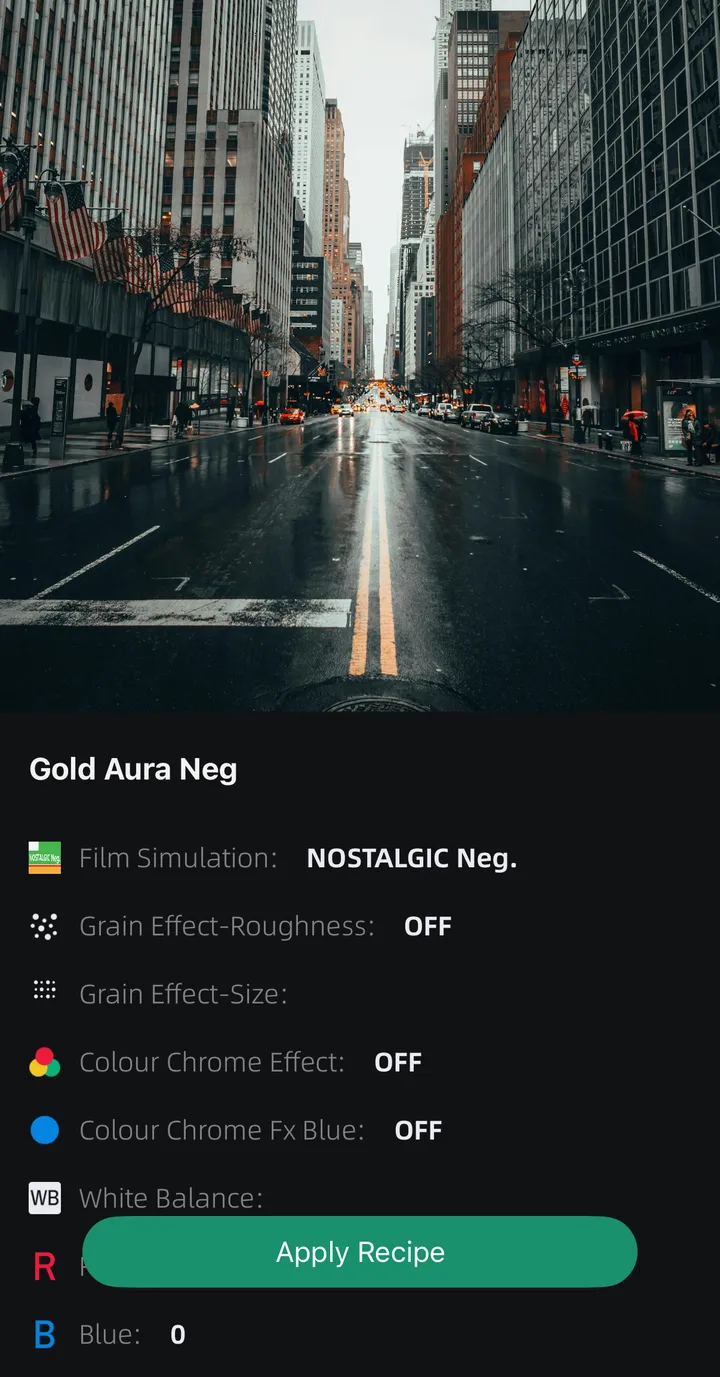
Find one in the Community tab or in My Recipes, open it, and tap Apply Recipe. Still choosing? Start with the most popular Fujifilm recipes or browse the recipe library by camera.
- 2
Choose Wireless
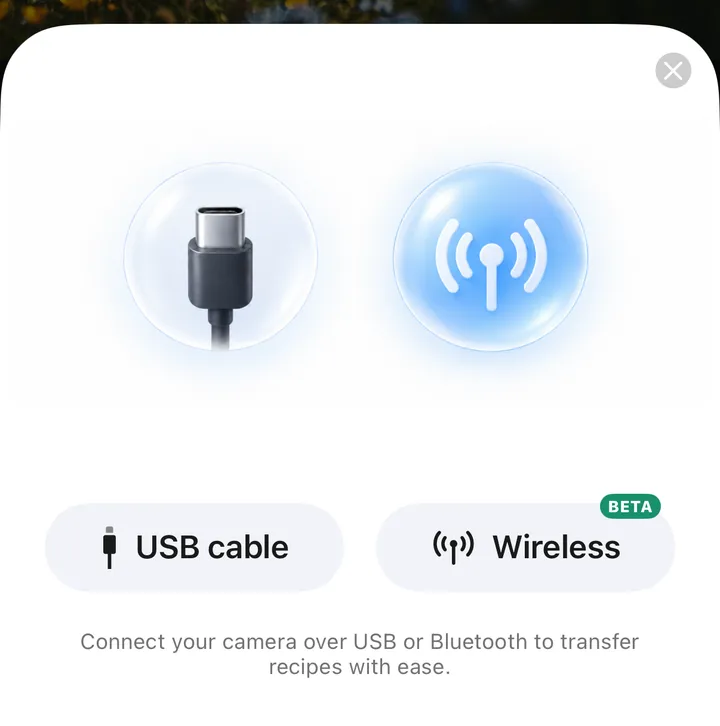
The connection sheet offers USB cable and Wireless. Tap Wireless and the app starts scanning.
- 3
Tap your camera
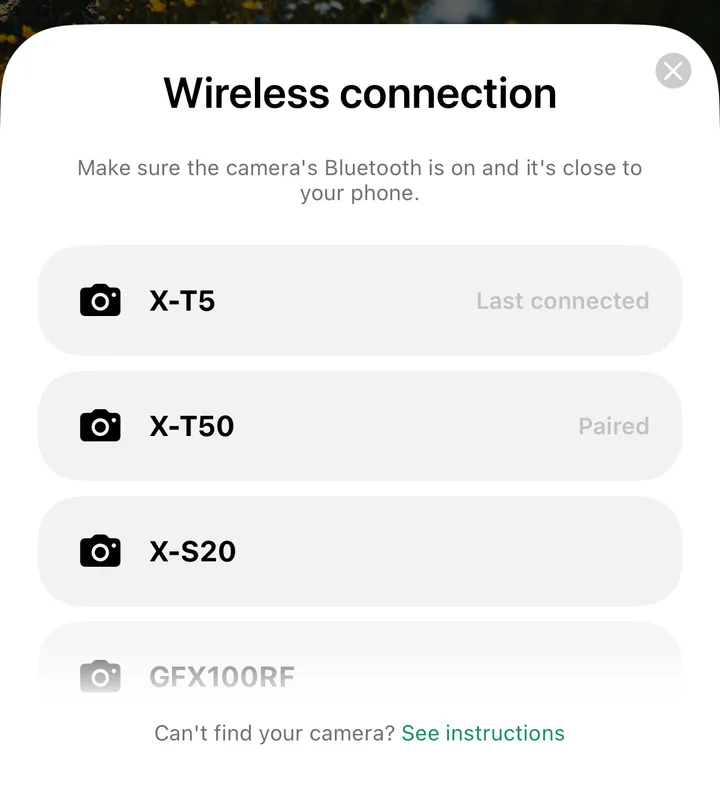
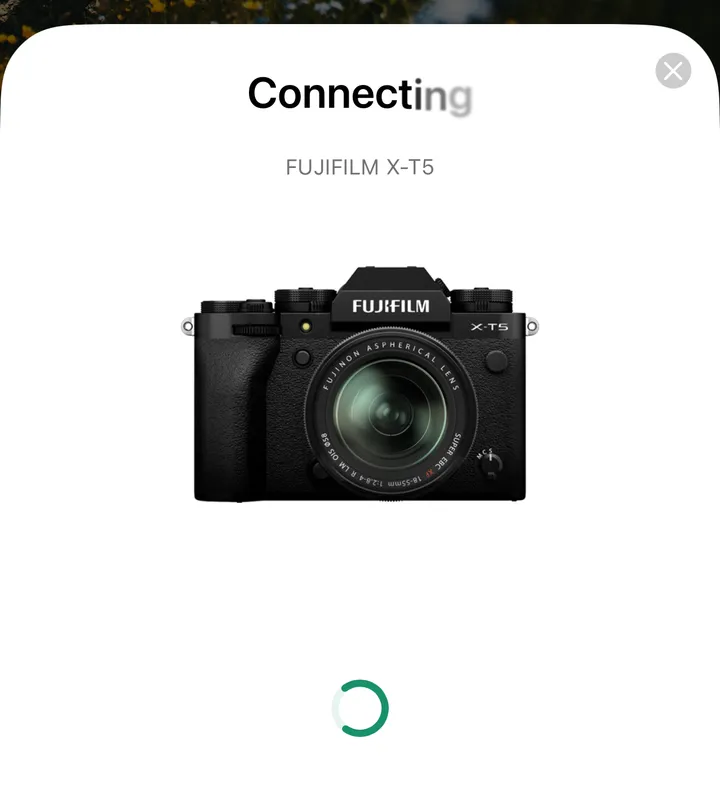
You’ll see Connecting, possibly a pairing prompt, then Reading the camera settings. This takes a few seconds.
- 4
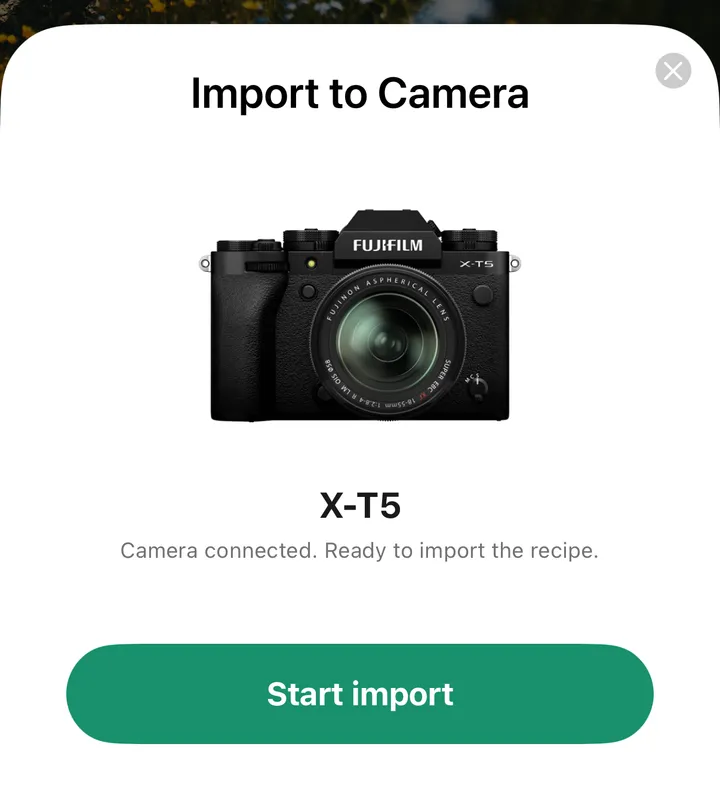
Tap Start import right away
When the sheet says “Camera connected. Ready to import the recipe.”, carry on without a long pause. Cameras tend to drop an idle Bluetooth link after about 20 seconds.
- 5
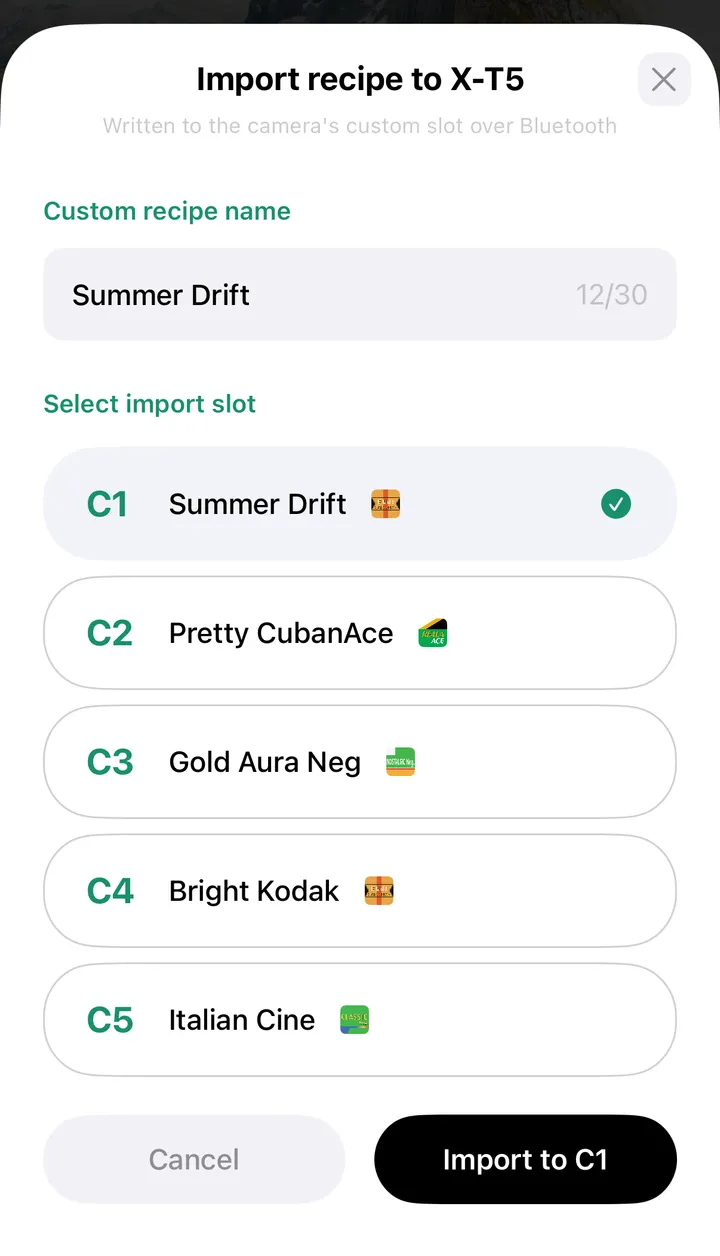
Choose the slot
Under Select import slot, tap the slot you want. Writing a slot overwrites whatever is in it and there is no undo, so save anything you want to keep to My Recipes first. Slot counts vary by body: most have C1–C7, the GFX100 II has C1–C6, and the X-S20, X-S10 and X-M5 have C1–C4. You can edit the Custom recipe name; use letters and numbers only.
- 6
Tap Import to C3 (or whichever slot you chose)
Keep the camera on and the app on screen until it finishes. Locking the phone or switching apps cuts the Bluetooth link.
- 7
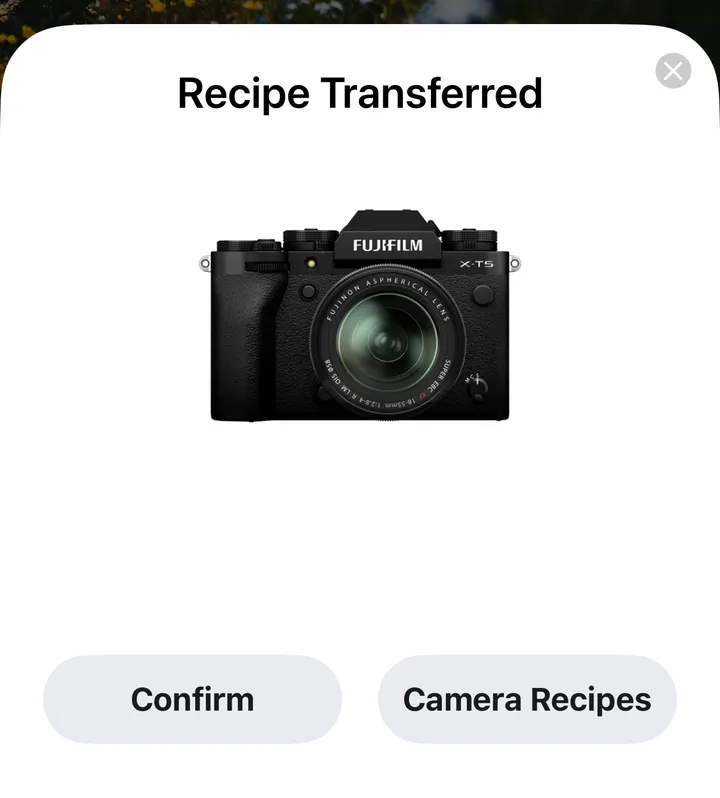
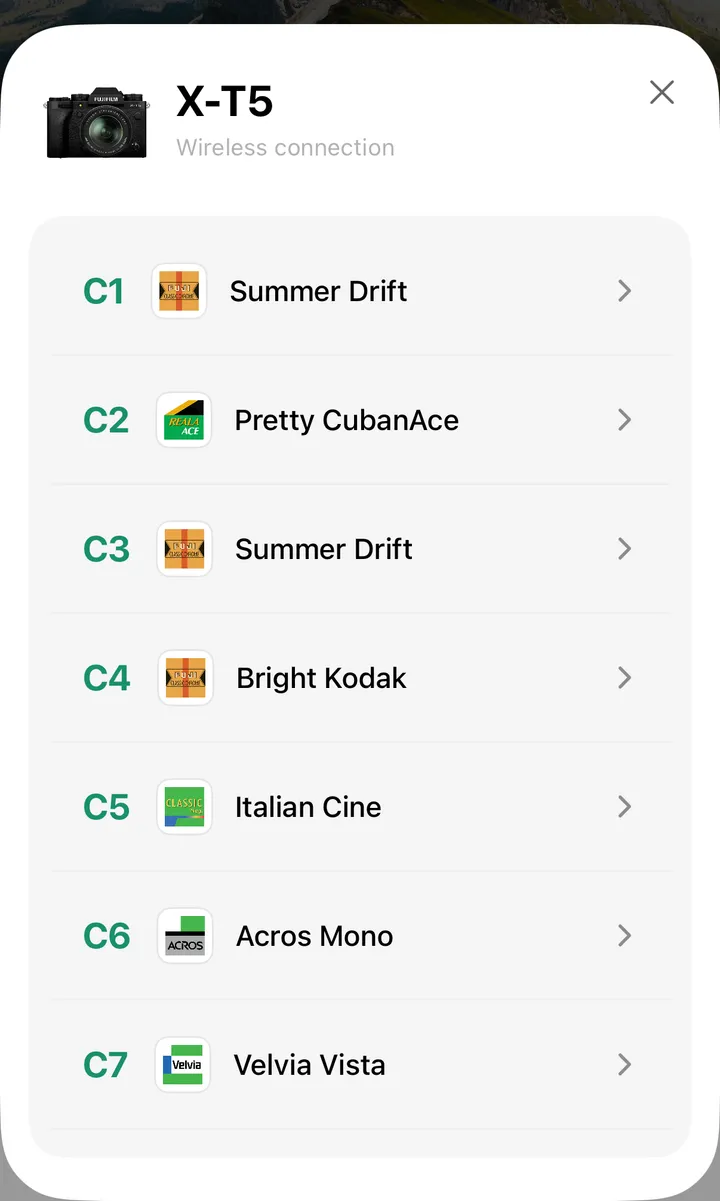
Wait for “Recipe Transferred”
From there, tap Camera Recipes to see what each slot on the camera now holds, or Confirm to finish. The app changes only the picture settings stored in the slot you picked; photos on the card aren’t touched.
Import a recipe on Android
Wireless import isn’t in the Android app on Google Play yet. On Android, recipes go to the camera over USB (OTG) for now, into the same custom slots. USB steps · Android USB (OTG) guide
Check it worked, then shoot from that slot
- The Camera Recipes list is read back from the camera after the write, so it shows what the camera actually holds, not what the app intended to send.
- If the success screen adds a line saying a setting “isn’t supported on this camera model yet and wasn’t written”, those settings kept their old values. Set them by hand in the camera menu.
- If the recipe uses a film simulation your camera doesn’t have, such as Reala Ace or Nostalgic Neg on an X-T3, the slot keeps its old film simulation and the rest is written. Pick recipes made for the simulations your body has; which cameras have Reala Ace lists them model by model.
- Mode dial with C positions (X-S10, X-S20, X-M5 and similar)
- Turn the dial to the C position you wrote. AUTO and SP don’t use your custom settings.
- Slot chosen in the menus (X100VI, X-T5 and similar)
- Pick the slot in the Q menu or with SELECT CUSTOM SETTING in the menu, then shoot in P, A, S or M.
- Film simulation dial (X-T50, X-M5, X-T30 III)
- The dial position can override the film simulation stored in the slot. Your manual explains which dial position leaves it to the slot.
If it won’t connect or won’t write
Roughly in order of how often they come up. Quoted headings are the app’s own messages.
- The camera disconnects after connecting, before you write
- You may see “The camera disconnected” while you’re on the ready screen or choosing a slot. Cameras drop an idle link after about 20 seconds. Tap Reconnect, then go from Start import to the slot without stopping.
- “The camera didn’t wake up”
- You may first see “Waking the camera, please wait”. When a Fujifilm camera is switched off, its Bluetooth stays on standby, so the phone can find it and even connect, but the camera can’t send or receive settings. Turn the power switch on and try again.
- “The camera did not respond to the backup request in time”
- This one usually appears when you tap Import. The camera wasn’t ready for the write yet. Wait a few seconds and tap Import again.
- “The link dropped after the write was committed”
- The camera accepted the recipe, but the link dropped before the app could double-check it. Tap Reconnect and open Camera Recipes: the recipe is often already in the slot. Write it again only if it isn’t.
- “Pairing did not complete”
- On newer bodies the iPhone pairing request was missed, cancelled, or not confirmed in time. Put the camera back on the pairing screen, tap Pair as soon as the iPhone asks, press MENU/OK on the camera if it shows a number, and do both within about 30 seconds.
- The camera isn’t in the list, or “The camera is not in pairing registration mode”
- The first time, the camera only appears while it is on the PAIRING REGISTRATION screen. Also check that the camera is switched on, that its Bluetooth is on, that FUJIFILM XApp and other camera apps are closed, and that the phone is close.
- Pairing never completes, even when you follow every step
- Some older camera firmware uses an older pairing method that the current app version doesn’t complete. Updating the camera to Fujifilm’s latest firmware is worth trying. If that doesn’t help, use USB for now.
- “The pairing records on your phone and camera no longer match”
- This also shows up as a general “Something went wrong” after you reset the camera’s wireless settings. The camera deleted its pairing, but the iPhone still holds the old one, and no app can connect until both sides are cleared: on the iPhone open Settings › Bluetooth, tap ⓘ next to the camera, then Forget This Device; delete the pairing registration on the camera; then pair again.
- “The camera rejected the saved pairing token”
- This happens on older bodies: the camera has been through pairing registration again since you last connected, so its pairing code changed. Open PAIRING REGISTRATION on the camera and connect again. The app saves the new code.
- The transfer stops part-way, or “The link dropped during writing”
- Reconnect and look at Camera Recipes before writing again. To keep it from happening, move the phone closer, keep the app on screen and the phone unlocked, and keep the camera on.
- “We don’t support this camera’s settings format yet” or “This camera does not support Bluetooth backup”
- Your camera is one of the bodies that can’t import wirelessly. Use USB.
- “The read-back does not match what was written”
- Open Camera Recipes. If the slot shows the recipe, you’re done. If it doesn’t, try once more or switch to USB.
- “Bluetooth is off” or “Bluetooth access not allowed”
- Turn Bluetooth on in Control Center, or tap Open Settings and allow Bluetooth for FujiStyle. Changing the permission restarts the app; open the recipe again and choose Wireless.
- “The camera appears to have powered off automatically” or “the battery may be low”
- Turn off the camera’s auto power off, or set it longer, while you import. Charge or swap the battery if the app says it may be low.
- The recipe transferred, but photos look the same
- The slot isn’t selected, the mode dial is on AUTO or SP, or a film simulation dial is overriding the slot. See shoot from that slot.
When to use USB instead
- Your camera isn’t in the wireless table, including the X-Pro2, X100F, X-T2, X-T20 and X-E3.
- You’re on Android.
- Bluetooth keeps dropping, or pairing never completes on your camera.
Both paths write the same settings into the same slots. The cable steps — data cable, connection mode, Lightning adapter — are in How to add Fujifilm recipes to your camera. Longer cable walkthroughs: iPhone · Android.
FAQ
- Is FujiStyle’s wireless import Bluetooth or Wi-Fi?
- Bluetooth. There’s no camera hotspot to join and no Wi-Fi setup. You pair the camera once through its PAIRING REGISTRATION screen, and the app finds it by scanning.
- Which Fujifilm cameras support wireless recipe import?
- 15 bodies today: X100VI, X-T5, X-T50, X-E5, X-T30 III, X-T30 II, X-T30, X-T3, X-H2, X-H2S, GFX100RF, GFX100 II, X-S20, X-S10 and X-M5. Slot counts vary by body: most have C1–C7, the GFX100 II has C1–C6, and the X-S20, X-S10 and X-M5 have C1–C4. Other bodies, such as the X-Pro2, X100F, X-E3, X-T4 and X100V, can’t import wirelessly yet and use USB instead.
- Does the Fujifilm X100VI support Bluetooth recipe import?
- Yes. The X100VI takes recipes over Bluetooth into any of its seven custom slots, C1–C7. Pair it through PAIRING REGISTRATION, tap Pair when the iPhone asks, then choose Wireless after Apply Recipe. To shoot with the recipe, select that slot in the Q menu or under SELECT CUSTOM SETTING.
- Can I import recipes wirelessly on Android?
- Not yet. On Android, FujiStyle writes recipes over USB (OTG), into the same custom slots.
- Do I have to pair every time?
- No. You pair once; after that you turn the camera on and tap it in the list, where it shows as Last connected or Paired. You pair again only if the camera was paired again elsewhere, its pairing was deleted or reset, or you reinstalled the app or changed phones.
- Does wireless import cost anything?
- It’s free in the iOS app at the moment, and the App Store listing describes it as free for a limited time. USB import is free as well.
- Will it overwrite the recipe already in that slot?
- Yes. Writing to C3 replaces what was in C3, and there is no undo. Save a recipe you care about to My Recipes, or bookmark the community recipe, before you overwrite its slot.
- Does it change anything else on my camera?
- It writes the picture settings of the slot you choose and leaves photos on the card alone. One exception: on the X-T3 and X-T30, white balance shift is stored per white balance mode, so other slots that use the same mode pick up the new shift.
- Is it safe for my camera, and does it affect the warranty?
- FujiStyle writes only the custom slot settings you choose; it doesn’t install or change firmware. Fujifilm has rules about third-party apps connecting to its cameras, and a camera connected to one may not be covered by Fujifilm’s official warranty. Weigh that before you connect.

Import to Camera
Use the FujiStyle App to apply recipes to your Fujifilm camera.

